
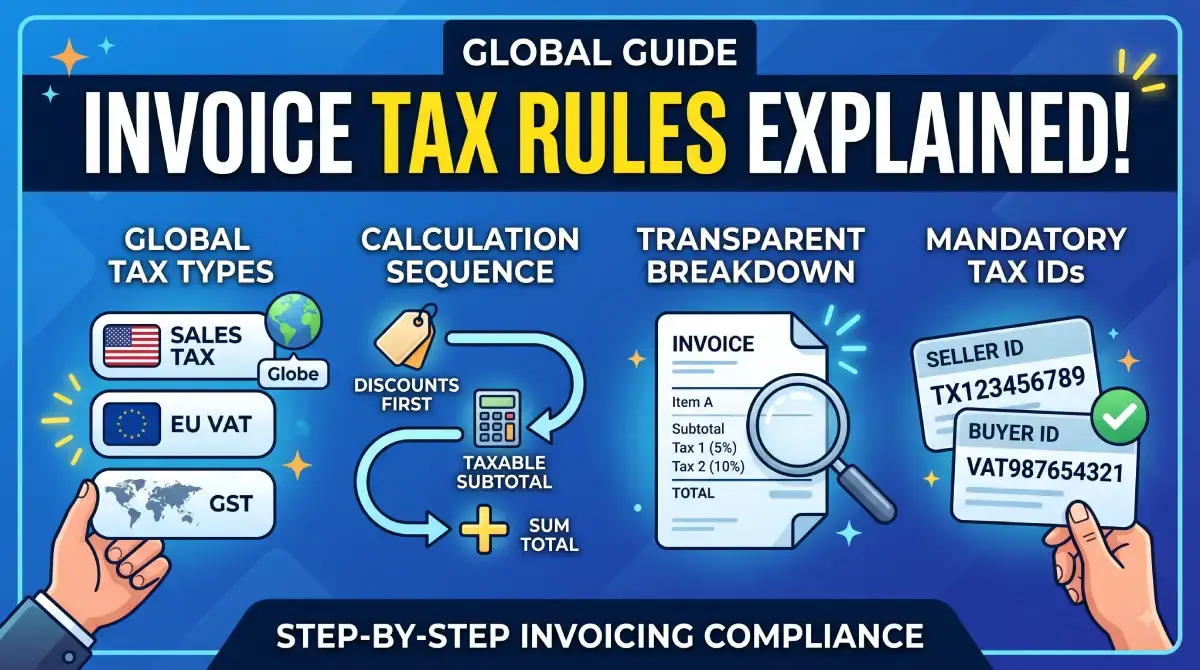
Navigating consumption taxes—whether called Sales Tax, Value Added Tax (VAT), or Goods and Services Tax (GST)—is a critical part of running a compliant business. Charging taxes incorrectly on your invoices can lead to compliance audits, client pushback, or out-of-pocket tax liabilities during filing season.
Adding taxes to digital invoices requires clear formatting that distinguishes between pre-tax totals, applied rates, and the final grand total.
Here is a straightforward guide on how consumption taxes work, how to calculate them, and how to format them on your invoices.
1. Key Differences Between Sales Tax, VAT, and GST
While all three are indirect consumption taxes collected from the buyer and remitted to tax authorities, their mechanics differ slightly:
Sales Tax (e.g., USA): Calculated only at the final point of sale to the end consumer. It is added to the subtotal as a flat percentage based on local state, county, or municipal rules.
VAT (e.g., European Union, UK): Assessed at each stage of the supply chain. Businesses charge VAT on sales (Output VAT) and reclaim VAT paid on business expenses (Input VAT).
GST (e.g., India, Australia, Canada): A comprehensive multi-stage tax structure that replaces multiple indirect taxes. B2B transactions often require specifying tax categories (e.g., CGST/SGST for intra-state or IGST for inter-state in India).
2. Step-by-Step: How to Add Tax to an Invoice
Step 1: Calculate the Pre-Tax Subtotal
Sum up the unit prices and quantities for all goods or services provided before applying any discounts or taxes.
$$\text{Subtotal} = \sum (\text{Quantity} \times \text{Unit Price}) - \text{Discounts}$$
Step 2: Apply the Correct Regional Tax Rate
Multiply the subtotal by the applicable tax percentage. If certain items are tax-exempt (e.g., zero-rated digital exports or essential services), calculate tax only on the taxable items.
$$\text{Tax Amount} = \text{Taxable Subtotal} \times \left(\frac{\text{Tax Rate \%}}{100}\right)$$
Step 3: Compute the Grand Total
Add the calculated tax amount to the subtotal:
$$\text{Grand Total} = \text{Subtotal} + \text{Tax Amount}$$
3. Sample Invoice Tax Breakdown
To maintain complete transparency for both your client and tax auditors, present the figures in a clean table format:
Item DescriptionQtyRateAmountTax RateTax AmountWeb Development Services1$2,000.00$2,000.0018% GST$360.00Cloud Hosting Setup1$500.00$500.0018% GST$90.00Subtotal$2,500.00Total GST (18%)$450.00Grand Total Due$2,950.00
4. Best Practices for Tax Formatting on Invoices
Display Tax Registration Numbers: Always list your official Tax ID (GSTIN, VAT ID, or State Tax Number) near your business name, as well as the buyer's Tax ID for B2B billing.
Never Embed Tax Silently: Avoid displaying a single lump sum without showing the underlying tax percentage and base price unless issuing an explicit tax-inclusive consumer receipt.
Handle Discounts Before Tax: Apply promotional discounts to line items before calculating the tax percentage to avoid overcharging tax.
"Add sub-totals, discounts, and tax rates effortlessly using the Invoice Serve Editor."